Building a local coding assistant is a practical way to keep your data private and avoid recurring AI subscription costs. If your hardware is capable of running local language models—such as an Apple Silicon machine—you can integrate them directly into Visual Studio Code using the Continue extension.
Prerequisites:
- Visual Studio Code
- the Continue extension from the VS Code marketplace
- Ollama installed and running locally
- at least one model installed
I use a Mac mini M4 as my local AI environment. Models in the 7B–12B range run reliably on this hardware and provide good responsiveness for development tasks. This includes models such as Llama 3.1 8B, Qwen 2.5 Coder 7B, and Mistral 7B.
Installing Continue in Visual Studio Code
- Open Visual Studio Code.
- Go to the Extensions panel.
- Search for “Continue”.
- Install the extension
- Reload the editor if prompted.
After installation, a new sidebar icon labeled “Continue” appears in the Activity Bar.
Preparing Ollama
If you have not yet installed Ollama, you can check out my guide here
Before connecting Continue to Ollama, verify that Ollama is installed and running:
ollama run llama3.1If the model loads and responds, the local AI server is active.
Connecting Continue to Ollama
Continue uses a configuration file named continue.json. The extension creates it automatically the first time you open the sidebar.
To configure Ollama:
- Open the Continue sidebar.
- Click the settings icon in the top-right corner.
- Navigate to “Configs” / “Local Config”.
- Add a model entry pointing to the local Ollama server.
A minimal configuration looks like this:
name: Local Config
version: 1.0.0
schema: v1
models:
  - name: Qwen2.5-Coder 7B
    provider: ollama
    model: qwen2.5-coder:7b
    roles:
      - autocomplete
      - chat
      - edit
      - apply
Using the Chat Window
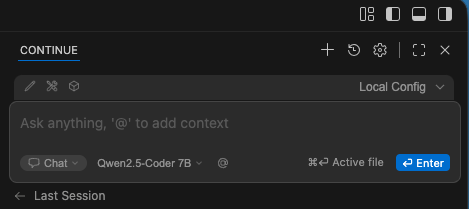
The chat window is the main interface for interacting with your local model. It supports several useful features:
Asking Questions About Your Code
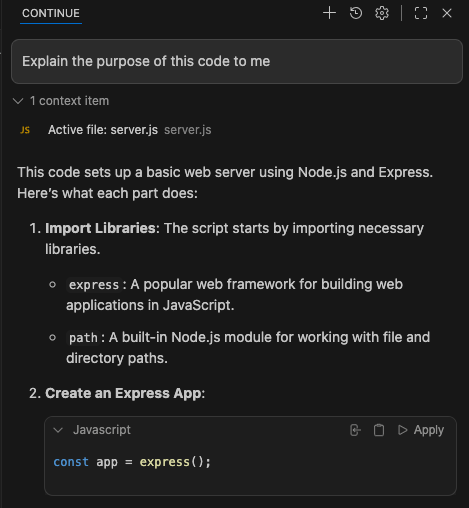
You can ask the model to explain a function, summarize a file, or describe how a module works. Continue automatically includes the relevant file context when you reference it. When you type your question and send it with Ctrl/Cmd + Enter, Continue will automatically add the active file as context.
Generating or Refactoring Code
You can request new code or improvements to existing code:
“Refactor this function for readability.”
“Generate a TypeScript interface for this JSON structure.”
Switching Models
The model dropdown at the top of the chat panel allows you to switch between installed Ollama models instantly. This is useful when comparing output quality or performance.
Inline Editing Actions
Continue also supports inline actions directly in the editor:
- Select a block of code.
- Press Cmd+I (macOS) or Ctrl+I (Windows/Linux).
- Choose an action such as “Explain”, “Refactor”, or “Add Comments”.
The model processes only the selected code and returns the result in a new editor tab or inline, depending on the action.
This workflow is efficient for small, focused tasks.
Continue Quickstart
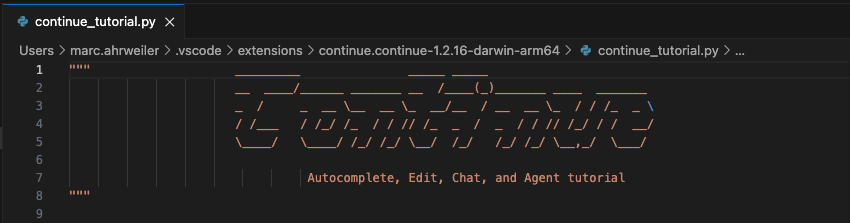
The Continue extension includes a small quickstart Python file that demonstrates how the extension works. You can find it in the Continue settings (inside the chat window) under “Help” / “Quickstart”
It contains a few code examples and instructions how Continue can work with them.
Summary
The Continue extension provides a clean and flexible way to use local Ollama models inside Visual Studio Code. Installation is straightforward, configuration requires only a few lines in a JSON file, and the chat interface integrates naturally into the development workflow. With a capable machine such as the Mac mini M4, local models offer fast responses and a private, cost‑free alternative to cloud‑based assistants.
Leave a Reply