Category: Blog

Your blog category

  • Building a Simple RAG System with Ollama: Retrieval-Augmented Generation Explained

    What is RAG?

    Retrieval-Augmented Generation (RAG) is a powerful technique in AI that combines the strengths of information retrieval and generative models. Instead of relying solely on a language model’s pre-trained knowledge, RAG first retrieves relevant information from a knowledge base and then uses that context to generate more accurate and up-to-date responses.

    Why is RAG important? Traditional language models can hallucinate or provide outdated information. RAG addresses this by grounding responses in real, external data, making AI systems more reliable for tasks like question-answering, chatbots, and knowledge assistants.

    How RAG Works

    RAG typically involves two main steps:

    1. Retrieval: Search for relevant documents or data chunks based on the user’s query.
    2. Generation: Feed the retrieved information as context to a language model, which generates a response.

    Common tools for RAG include vector databases (e.g., Pinecone, Chroma) for efficient similarity search, and embedding models to convert text into vectors. In our example we will use a simple JSON file for simplicity.

    Our Simple RAG Example

    In this post, we’ll build a basic RAG system using Ollama, a local AI platform. Our example is a contact lookup chatbot: users can ask questions like “What’s Peter’s phone number?” and the system retrieves the relevant contact info before generating a response.

    We are going to extend the example from this blog post. You can download the full source code here: GitHub

    Key Components

    • Data: A JSON file with 100+ contacts (name, phone, email, address).
    • Embeddings: We use Ollama’s mxbai-embed-large model to convert contact details into vectors.
    • Similarity Search: Cosine similarity to find the best-matching contact.
    • Generation: Ollama’s llama3 model generates responses using the retrieved contact as context.
    • Intent Detection: A simple keyword-based check to decide if a query needs RAG or just general chat.

    Step-by-Step Implementation

    Prepare Data:

    • Create contacts.json with contact details or use the example data provided with the source code.
    • Run build_embeddings.js to generate embeddings for each contact using the full text (name + phone + email + address).

    Server Setup (server.js):

    • Handle POST requests to /rag.
    • Detect if the query is contact-related (using keywords like “phone”, “email”).
    • If yes: Generate query embedding, find the most similar contact via cosine similarity, build context, and call the LLM.
    • If no: Direct LLM call without context.

    Cosine Similarity:

    • Measures vector similarity (0 to 1, where 1 is identical).
    • Used to rank contacts by relevance to the query.

    Frontend (index.html, main.js):

    • Simple chat interface.
    • Sends queries to /rag and displays responses.

    Running the Example

    1. Install Ollama and pull models: ollama pull mxbai-embed-large and ollama pull llama3.
    2. Run node build_embeddings.js to prepare data.
    3. Start server: node server.js.
    4. Open http://localhost:8000 and chat!

    Example queries:

    • “What’s Anna’s email?” → Retrieves Anna’s contact and generates a response.
    • “Tell a joke.” → General LLM response.

    Conclusion

    This example demonstrates RAG’s core principles in under 200 lines of code. It’s not production-ready (no error handling, security, JSON instead of a DB), but perfect for learning.

    RAG bridges the gap between retrieval and generation, making AI more factual and context-aware. Our contact chatbot shows how easy it is to implement with local tools like Ollama.

    Full code: GitHub
  • How to Create an Azure AI Foundry Resource

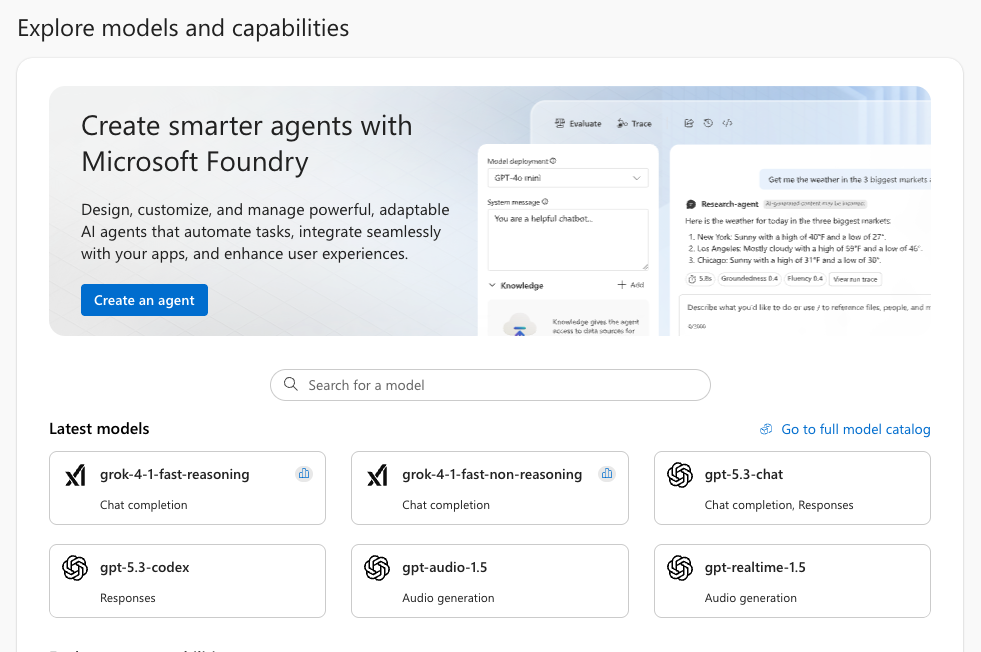
    Azure AI Foundry is Microsoft’s unified environment for building, testing, and deploying AI applications and agents. It brings together model catalog, prompt engineering tools, evaluation workflows, deployment management, and governance in one place. Developers use it to prototype conversational agents, automate internal processes, integrate AI into existing applications, or run large‑scale inference workloads without managing infrastructure.

    A major advantage is the direct access to a wide range of models, including ChatGPT, Claude, and many specialized foundation models. You can test them interactively in the browser, configure deployments, and expose them as APIs for your own applications.

    You can try all of this with a free Azure trial subscription. The included credits allow you to create resources, deploy models, and experiment with Azure AI Foundry at no cost — ideal for learning, prototyping, and building your first AI‑powered tools.

    Step 1: Create a model and project

    1. Open ai.azure.com and sign in.
    2. Click on Model catalog.
    3. Search for GPT‑4.1 mini (or any other model you like).
    4. Open the model’s detail page.
    5. Click Use this model.
    6. Choose “Create new project” when prompted and enter a project name.
    7. Choose:
      • Subscription
      • Resource group
      • Resource name
      • Region
    8. Confirm creation.

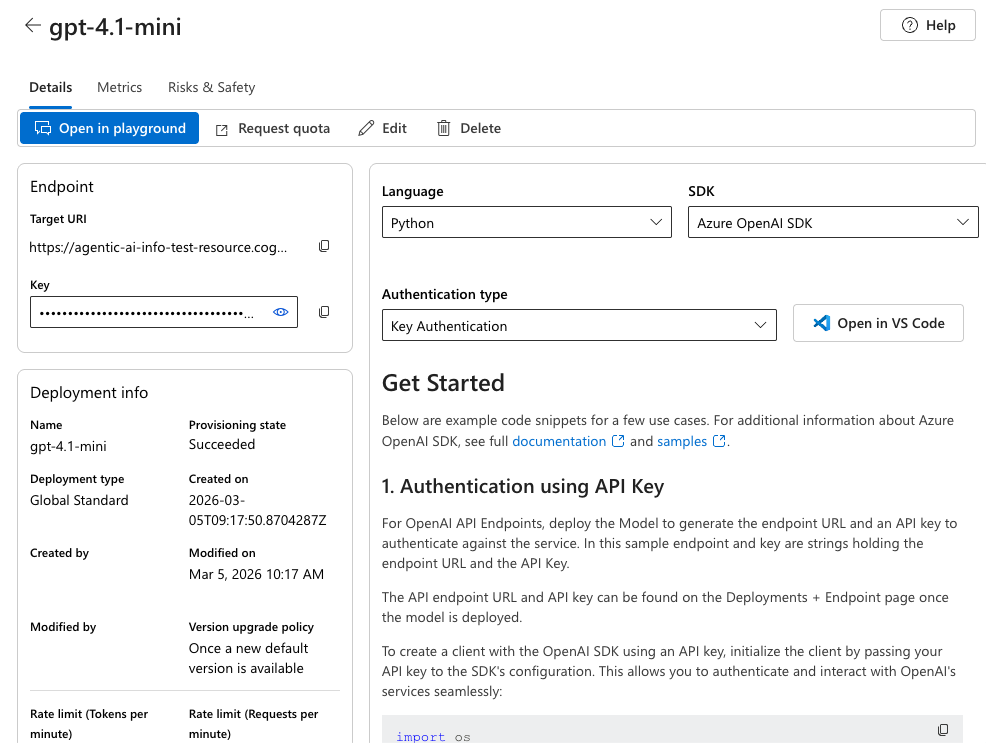
    Azure will provision the resource in the background and create your model. Once ready, you will land on an overview page:

    Step 2: Use the API Key in Your Code Project

    On the right side of the overview you will find coding examples how to integrate the model in your projects.

    On the left side you will find the URL of the API endpoint and the API key we are going to use in our example.

    You could for example create a simple Node.js aplication using the OpenAIClient:

    • Install Node.js if you have not already
    • Create a file package.json and copy the following snippet to install all needed dependencies:
    {
      "type": "module",
      "dependencies": {
        "openai": "latest"
      }
    }
    • run npm install
    • create a new .js file, e.g. foundryTest.js
    • copy the following code and insert the URL and API key of your Foundry Resource
    import { AzureOpenAI } from "openai";
    
    const endpoint = "<your API endpoint>";
    const apiKey = "<your API key>";
    
    const apiVersion = "2024-04-01-preview";
    const deployment = "gpt-4.1-mini";
    
    export async function main() {
    
        const options = { endpoint, apiKey, deployment, apiVersion }
        const client = new AzureOpenAI(options);
    
        const response = await client.chat.completions.create({
            messages: [
                { role: "system", content: "You are a helpful assistant." },
                { role: "user", content: "I am going to Paris, what should I see?" }
            ]
        });
    
        if (response?.error !== undefined && response.status !== "200") {
            throw response.error;
        }
        console.log(response.choices[0].message.content);
    }
    
    main().catch((err) => {
        console.error("The sample encountered an error:", err);
    });
    • run “node foundryTest.js”

    The code will send the hardcoded request “I am going to Paris, what should I see?” to your foundry resource and authorize using your API key. You will see the response of your model in the console.

    A Note on API Keys

    API keys are sensitive secrets that grant full access to your Azure AI resources. Anyone who obtains your key can run requests against your deployment, which may generate unexpected costs or allow unauthorized use of your models. For that reason, API keys must never be shared publicly, posted in screenshots, or committed to GitHub repositories. Always store them in environment variables, secret managers, or encrypted configuration files, and rotate them immediately if you suspect they may have leaked.

    Summary

    Azure AI Foundry makes it easy to explore modern AI models, deploy them as APIs, and integrate them into your applications. With the free Azure trial, you can experiment with GPT‑4.1 mini and build your first AI‑powered tools without upfront cost. Just pick a model, create a project, deploy it, copy your API key, and start coding.

  • What Is Agentic AI?

    Agentic AI is emerging as a key concept in the next generation of software development. Instead of simply responding to prompts, agentic systems can take initiative, break down tasks, make decisions, and interact with tools or codebases autonomously. This shifts AI from a passive assistant to an active collaborator—one that can analyze projects, modify files, generate code, and maintain complex systems with far less manual effort.

    This blog post explains what agentic AI is, how it works, and why it matters specifically for software engineering.

    Understanding Agentic AI

    Agentic AI refers to systems that can act independently toward a defined goal. Unlike traditional language models, which only generate text based on a prompt, agentic systems combine several capabilities:

    • Goal‑oriented behavior
    • Task decomposition
    • Tool use
    • Memory and context management
    • Autonomous decision‑making

    This makes agentic AI more similar to a junior developer or automation system than a simple chatbot.

    How Agentic AI Differs from Standard LLMs

    A conventional LLM responds to a single prompt, has no persistent memory, and cannot take actions or modify files. An agentic AI system, by contrast, can:

    • receive a goal
    • analyze the project
    • decide which files to inspect
    • propose or apply changes
    • evaluate whether the goal is met
    • iterate until the task is complete

    This transforms AI from a text generator into an active problem‑solver.

    Core Components of Agentic AI

    Planning

    The agent determines what steps are required to achieve the goal.

    Tool Use

    Agents can call external tools such as file editors, compilers, linters, test runners, or APIs.

    Memory

    Agents maintain short‑term or long‑term memory to track progress and context.

    Reflection

    Agents evaluate their own output and adjust their approach.

    Why Agentic AI Matters for Software Development

    Software development naturally involves multi‑step reasoning, interacting with tools, modifying files, and maintaining consistency across a codebase. Agentic systems can support developers by:

    • automating code changes
    • understanding project‑wide structure
    • providing continuous assistance
    • reducing repetitive manual work

    This leads to faster iteration and more efficient workflows.

    Examples of Agentic AI in Modern Development Tools

    IDE‑Integrated Agents

    Tools like VS Code extensions or Xcode’s new agentic features allow agents to inspect project structure, apply code changes, fix build errors, and generate new components.

    DevOps and CI Agents

    Agents can analyze pipelines, update configurations, or validate deployments.

    Codebase Maintenance

    Agents can scan for outdated dependencies, unused code, or inconsistent patterns and propose fixes.

    Summary

    Agentic AI represents the next step in AI‑assisted software development. Instead of simple prompt‑response interactions, agentic systems can plan, act, use tools, and modify code autonomously. This enables faster development cycles, automated maintenance, and deeper integration with IDEs and local workflows.

  • Xcode Introduces Built‑In Agentic AI Tools


    Apple’s latest release of Xcode introduces integrated agentic AI development tools, marking a significant shift in how developers can build, analyze, and maintain applications across Apple platforms. With Xcode 26.3, AI agents from Anthropic and OpenAI can now operate directly inside the IDE, assisting with tasks that range from analyzing project structure to autonomously modifying files and generating code.

    Apple describes this as agentic coding, a workflow in which coding agents can break down tasks, make decisions based on the project architecture, and collaborate throughout the entire development lifecycle. 

    What’s new in Xcode 26.3

    The update expands Xcode’s existing AI capabilities by allowing agents such as Claude Agent and OpenAI’s Codex to take action inside the IDE rather than simply offering suggestions. These agents can analyze entire projects, update configurations, fix compile errors, and help developers iterate more quickly. This represents a move from traditional prompt‑based assistance toward more autonomous, goal‑oriented development support. 

    Availability

    The updated version of Xcode is now available as a free download in the Mac App Store, making these new AI‑driven development features accessible to all Apple developers. You can find it here:

    XCode in Apple App Store

  • What Are LLMs and How Do They Perform on Consumer Hardware?

    Running large language models (LLMs) locally have become a realistic option for developers who want privacy, predictable costs, and full control over their AI workflows. Tools like Ollama, LM Studio, and mlx‑based models on Apple Silicon make it possible to run capable models directly on a laptop or compact desktop machine.

    This article provides an overview of how local LLMs work, what the key concepts mean, and what you can expect from consumer hardware such as the Mac mini M4.

    What a Large Language Model Actually Is

    A large language model is a statistical system trained on large text datasets. It predicts the next token in a sequence, where a token is a small unit of text (roughly 3–4 characters on average). Everything an LLM does—writing code, explaining errors, generating documentation—comes from this next‑token prediction process.

    At runtime, the model does not “look up” answers. It performs a sequence of matrix multiplications using its internal parameters (weights). These weights encode patterns learned during training.

    Model Size: What “7B”, “13B”, or “70B” Means

    Model sizes are usually expressed in billions of parameters:

    3B–7BFast chat, simple coding tasks, lightweight agentsRuns on almost any modern machine
    13BMore coherent reasoning, better coding supportNeeds more RAM and bandwidth
    30B–70BHigh‑quality reasoning, strong coding performanceRequires high memory bandwidth and large RAM/VRAM

    A parameter is a single floating‑point value. More parameters generally mean better reasoning and more context understanding, but also higher memory usage and slower inference.

    How this works at runtime

    When you send a prompt to a local model:

    1. The model loads its weights into RAM (or VRAM).
    2. The prompt is converted into tokens.
    3. The model processes these tokens through its layers.
    4. It predicts the next token.
    5. The new token is appended to the input.
    6. Steps 3–5 repeat until the output is complete.

    The speed of this loop depends on:

    • memory bandwidth
    • CPU/GPU architecture
    • quantization level
    • model size
    • context length

    Apple Silicon performs well here because of its unified memory architecture and high bandwidth.

    The Mac mini M4 is a strong machine for local AI development. Even the base model offers:

    • high memory bandwidth
    • efficient matrix multiplication hardware
    • unified memory (shared between CPU and GPU)
    • excellent performance per watt


    Practical Model Sizes on a Mac mini M4:

    Llama 3.1 8B~4–5 GBSmoothGood for chat and basic coding
    Llama 3.1 12B
    ~7–8 GB
    SmoothBetter reasoning, solid coding
    Qwen 2.5 Coder 7B
    ~4–5 GB
    SmoothStrong coding performance
    Qwen 2.5 Coder 14B
    ~8–10 GB
    GoodSlower but usable for coding tasks
    Llama 3.1 70B
    35–40 GB
    Not practicalToo large for local RAM limits

    Beyond Apple Silicon systems, several other current hardware options handle local LLMs effectively. AMD’s recent desktop processors, such as the Ryzen 7000 and 9000 series, offer strong CPU‑side inference performance thanks to high core counts and substantial memory bandwidth, making them suitable for running 7B–13B models in quantized formats.

    For users who prefer GPU acceleration, mid‑range NVIDIA cards like the RTX 4060, 4070, or 4070 Ti provide stable throughput for models in the 7B–30B range, depending on available VRAM. An RTX 4060 with 8 GB VRAM is well suited for 7B models in FP16 or larger models in 4‑bit quantization, while a 4070 with 12 GB VRAM can handle 13B models at higher precision with comfortable performance. These configurations give developers a broad set of options for running local models, depending on whether they prioritize CPU inference, GPU acceleration, or a balance of both.

    Local Models vs. Cloud Models: What you should know

    Local models offer:

    • Privacy: your code never leaves your machine
    • Predictable cost: no API billing
    • Offline capability
    • Full control over model versions and behavior

    Cloud models still lead in:

    • complex reasoning
    • long‑context tasks
    • multi‑modal workflows
    • raw performance

    For many developers, a hybrid workflow makes sense: local models for everyday coding and cloud models for complex tasks.

    Summary

    Local LLMs have reached a point where they are practical for everyday development tasks. With tools like Ollama and Continue and modern hardware such as the Mac mini, you can run capable models without relying on cloud services.

    Key points:

    • LLMs predict tokens using learned parameters.
    • Model size affects quality and hardware requirements.
    • A Mac mini M4 handles 7B–12B models very well.
    • Local models are ideal for private, cost‑controlled development workflows.

  • Build a local AI coding agent with VS Code, Continue and Ollama

    Building a local coding assistant is a practical way to keep your data private and avoid recurring AI subscription costs. If your hardware is capable of running local language models—such as an Apple Silicon machine—you can integrate them directly into Visual Studio Code using the Continue extension.

    Prerequisites:

    • Visual Studio Code
    • the Continue extension from the VS Code marketplace
    • Ollama installed and running locally
    • at least one model installed


    I use a Mac mini M4 as my local AI environment. Models in the 7B–12B range run reliably on this hardware and provide good responsiveness for development tasks. This includes models such as Llama 3.1 8B, Qwen 2.5 Coder 7B, and Mistral 7B.

    Installing Continue in Visual Studio Code

    1. Open Visual Studio Code.
    2. Go to the Extensions panel.
    3. Search for “Continue”.
    4. Install the extension
    5. Reload the editor if prompted.

    After installation, a new sidebar icon labeled “Continue” appears in the Activity Bar.

    Preparing Ollama

    If you have not yet installed Ollama, you can check out my guide here

    Before connecting Continue to Ollama, verify that Ollama is installed and running:

    ollama run llama3.1

    If the model loads and responds, the local AI server is active.

    Connecting Continue to Ollama

    Continue uses a configuration file named continue.json. The extension creates it automatically the first time you open the sidebar.

    To configure Ollama:

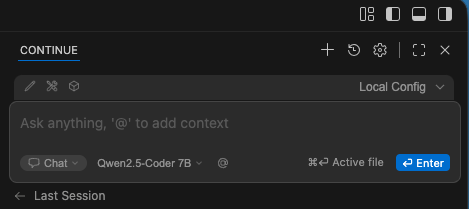
    1. Open the Continue sidebar.
    2. Click the settings icon in the top-right corner.
    3. Navigate to “Configs” / “Local Config”.
    4. Add a model entry pointing to the local Ollama server.

    A minimal configuration looks like this:

    name: Local Config
    version: 1.0.0
    schema: v1
    models:
      - name: Qwen2.5-Coder 7B
        provider: ollama
        model: qwen2.5-coder:7b
        roles:
          - autocomplete
          - chat
          - edit
          - apply

    Using the Chat Window

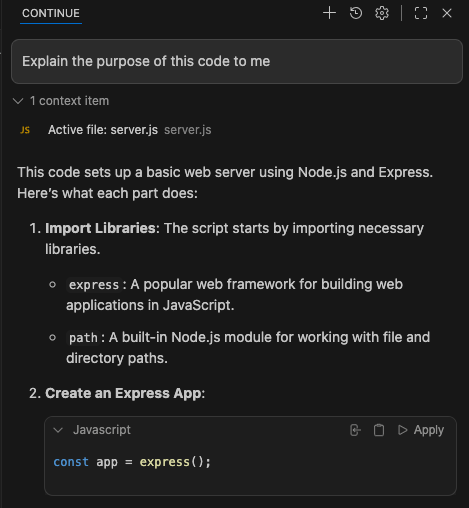
    The chat window is the main interface for interacting with your local model. It supports several useful features:

    Asking Questions About Your Code

    You can ask the model to explain a function, summarize a file, or describe how a module works. Continue automatically includes the relevant file context when you reference it. When you type your question and send it with Ctrl/Cmd + Enter, Continue will automatically add the active file as context.

    Generating or Refactoring Code

    You can request new code or improvements to existing code:

    “Refactor this function for readability.”
    “Generate a TypeScript interface for this JSON structure.”

    Switching Models

    The model dropdown at the top of the chat panel allows you to switch between installed Ollama models instantly. This is useful when comparing output quality or performance.

    Inline Editing Actions

    Continue also supports inline actions directly in the editor:

    1. Select a block of code.
    2. Press Cmd+I (macOS) or Ctrl+I (Windows/Linux).
    3. Choose an action such as “Explain”, “Refactor”, or “Add Comments”.

    The model processes only the selected code and returns the result in a new editor tab or inline, depending on the action.

    This workflow is efficient for small, focused tasks.

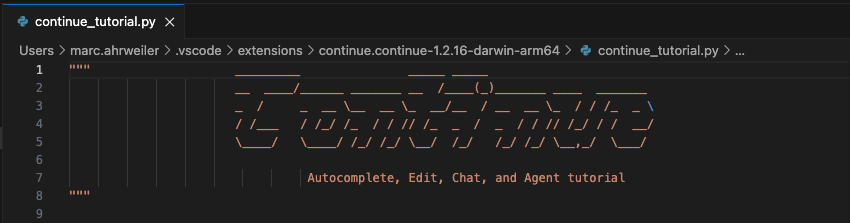
    Continue Quickstart

    The Continue extension includes a small quickstart Python file that demonstrates how the extension works. You can find it in the Continue settings (inside the chat window) under “Help” / “Quickstart”

    It contains a few code examples and instructions how Continue can work with them.

    Summary

    The Continue extension provides a clean and flexible way to use local Ollama models inside Visual Studio Code. Installation is straightforward, configuration requires only a few lines in a JSON file, and the chat interface integrates naturally into the development workflow. With a capable machine such as the Mac mini M4, local models offer fast responses and a private, cost‑free alternative to cloud‑based assistants.

  • Building a minimal Ollama Chat in pure HTML & JavaScript

    In our previous tutorial, we set up a local Ollama instance: How to Install Ollama locally and run your first model

    In this tutorial, we’re going to build a super‑simple chat app using plain HTML and JavaScript. We’ll walk through how the chat logic works, how messages are sent to Ollama, and how the UI updates in real time.

    You can download the sample app here:https://github.com/agentic-ai-info/simple-ollama-chat

    Overview

    Our minimal chat app consists of:

    • index.html — a simple UI with a message list, input field and send button
    • main.js — the actual chat logic (sending prompts, receiving responses, updating the UI)
    • server.js — a tiny Node server that serves the static files and proxies requests to Ollama

    The entire app runs locally and communicates with a local Ollama instance.

    The Chat Logic (main.js)

    Let’s break down the important parts: At the top of the file, we grab references to the DOM elements we need:

    const messagesEl = document.getElementById("messages");
    const promptEl = document.getElementById("prompt");
    const sendBtn = document.getElementById("sendBtn");
    const modelEl = document.getElementById("model");

    These give us access to:

    • the chat message container
    • the text input
    • the send button
    • the model selector

    Displaying Messages

    Whenever the user or the model sends a message, we append it to the chat window:

    function addMessage(text, role) {
        const div = document.createElement("div");
        div.className = "msg " + role;
        div.textContent = text;
        messagesEl.appendChild(div);
        messagesEl.scrollTop = messagesEl.scrollHeight;
    }

    This function:

    • creates a new <div>
    • assigns it a CSS class (user, assistant, or llm)
    • inserts the message text
    • scrolls the chat window to the bottom


    Sending a Message to Ollama

    The core of the chat app is the sendMessage() function:

    async function sendMessage() {
        const prompt = promptEl.value.trim();
        if (!prompt || isSending) return;
    
        const model = modelEl.value.trim() || "llama3";
    
        addMessage(prompt, "user");
        promptEl.value = "";
        promptEl.focus();
    }

    Here we

    • read the user’s input
    • prevent double‑sending
    • display the user message immediately
    • clear the input field


    Then we send the request to our proxy endpoint:

    const response = await fetch("/proxy/api/chat", {
        method: "POST",
        headers: { "Content-Type": "application/json" },
        body: JSON.stringify({
            model: model,
            messages: [{ role: "user", content: prompt }],
            stream: false
        })
    });
    • We call /proxy/api/chat instead of talking to Ollama directly (to prevent CORS problems)
    • The request body matches Ollama’s chat API format
    • stream: false keeps things simple (no streaming yet)


    Once Ollama replies, we parse the JSON and extract the model’s message:

    const data = await response.json();
    const content = data.message?.content ?? JSON.stringify(data);
    addMessage(content, "llm");

    The Minimal Node Server (server.js)

    Our ‘server’ does two things:

    1. Serves the static files: It delivers index.html, main.js, and any CSS files to the browser.

    2. Acts as a reverse proxy to Ollama: Normally the browser is not allowed to call Ollama (http://localhost:11434) directly because of CORS restrictions.

    So we forward all requests under /proxy/* to Ollama:

    • stripping unnecessary browser headers
    • keeping the request clean
    • avoiding CORS issues entirely

    To run the app, just call

    node server.js

    Conclusion

    This tiny Ollama chat app is an example of how far you can get with just:

    • HTML
    • pure JavaScript
    • a minimal Node server

    No frameworks, no build tools, no dependencies.

    If you want to extend it, here are some natural next steps:

    • add streaming responses
    • store chat history
    • support multiple models
    • add a nicer UI

    But even in its minimal form, this setup gives you a fully functional local LLM chat interface that’s easy to understand.

  • How to set up GitHub Copilot Chat in VS Code (Step‑by‑Step Guide)

    GitHub Copilot Chat is one of the easiest ways to get AI assistance directly inside Visual Studio Code. Whether you want help writing code, generating project templates, or understanding errors, Copilot Chat integrates seamlessly into your workflow – and it’s going to be your new best friend on the next projects.

    In this quick guide, you’ll learn how to:

    • install Visual Studio Code
    • create a GitHub account
    • install the GitHub Copilot Chat extension
    • send your first AI prompt inside VS Code
    • understand GitHub Copilot pricing and the free tier

    1. Install Visual Studio Code

    Visual Studio Code (VS Code) is a lightweight, fast, and free code editor from Microsoft.

    Go to the official download page: https://code.visualstudio.com

    Choose your operating system:

    • Windows
    • macOS
    • Linux

    Install VS Code using the standard installer.

    Once installed, launch the editor.

    2. Create a GitHub Account

    GitHub Copilot requires a GitHub account. You can start right away with a free GitHub Copilot account: https://github.com/signup

    Follow the steps to:

    • enter your email
    • choose a username
    • set a password
    • verify your account

    Once done, you’re ready to connect GitHub to VS Code.

    3. Install the GitHub Copilot Chat Extension

    GitHub Copilot Chat is available as an official extension inside VS Code.

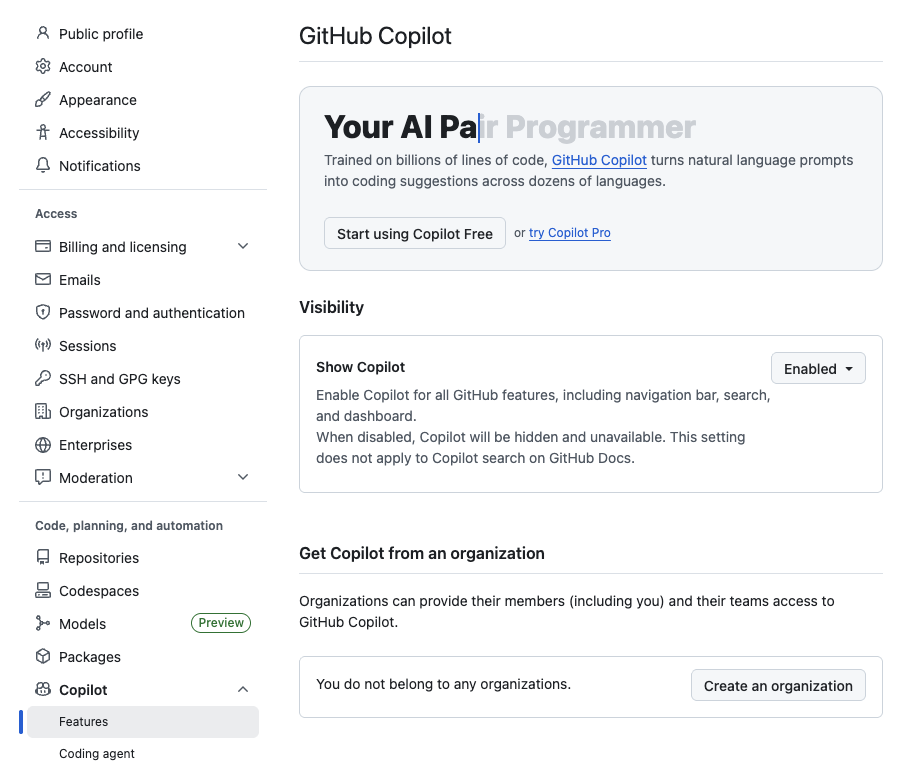
    You can install it directly from your GitHub settings page: https://github.com/settings/copilot

    There you can activate Copilot and follow the instructions to connect it to VS Code.


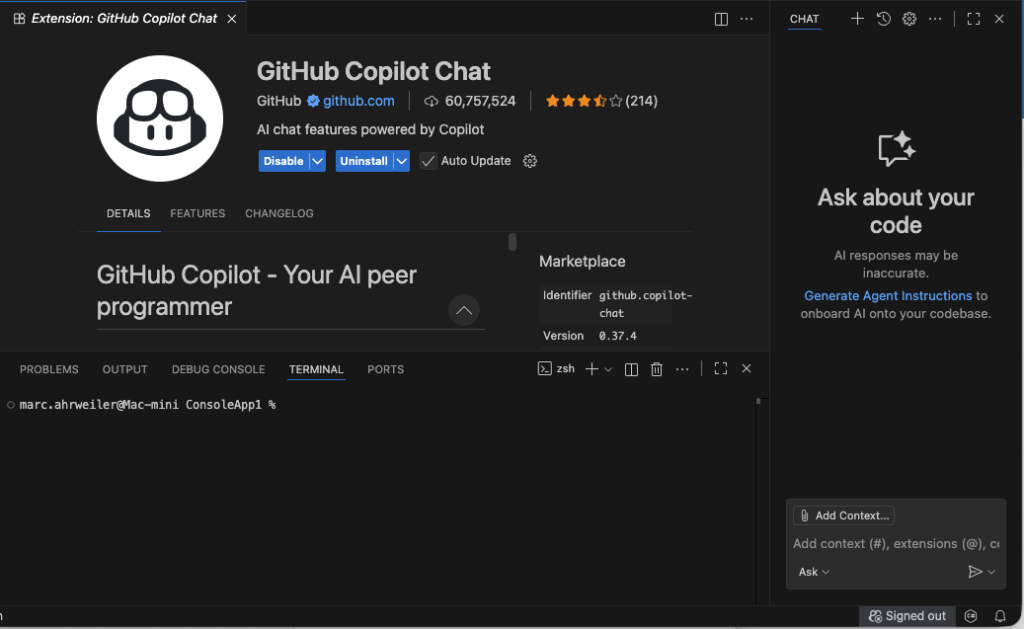
    Alternatively, you can install via VS Code Marketplace

    1. Open VS Code
    2. Click the Extensions icon on the left sidebar
    3. Search for: GitHub Copilot Chat
    4. Click Install

    After installation VS Code will ask you to sign in with GitHub.

    Confirm the login and authorize VS Code to access your GitHub account.

    4. Send Your First Message in Copilot Chat

    Once the extension is installed, you’ll see a new Copilot Chat icon in the sidebar.

    Open the chat

    • Click Copilot Chat
    • A chat window appears on the right side of VS Code

    Send your first prompt

    Try something like:

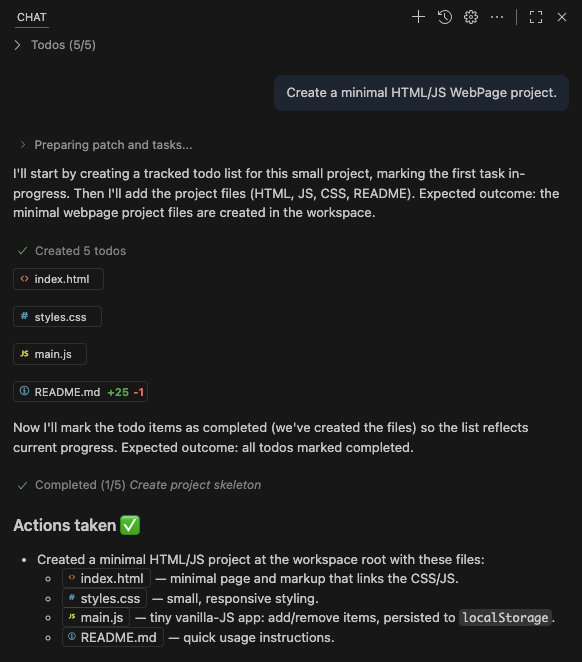
    Create a minimal HTML/JS WebPage project.

    Copilot will generate:

    • an index.html file
    • a basic JavaScript file
    • optional CSS
    • instructions on how to run the project

    You can accept or modify the suggestions and let Copilot insert the files directly into your workspace.

    5. GitHub Copilot Pricing (Including Free Tier)

    GitHub Copilot offers several plans depending on your needs. You can start with a free account which currently offers

    • 2,000 code completions per month
    • 50 Copilot Chat messages per month
    • Access to GPT‑4o and Claude 3.5 Sonnet models

    GitHub also provides a free Copilot plan for:

    • verified students
    • teachers
    • maintainers of popular open‑source projects

    This includes access to Copilot Chat.

    Paid Plans

    • Copilot Individual: Monthly subscription with full access to Copilot Chat, code completions, and inline suggestions, starting at 10$/month
    • Copilot Business / Enterprise: For teams, with additional security and policy controls.

  • How to Install Ollama locally and run your first model

    Running large language models (LLMs) locally has never been easier. Ollama provides a lightweight, fast, and privacy‑friendly way to run models like Llama 3, Mistral, Phi‑3, Gemma, and many others directly on your machine — without sending data to the cloud.

    In this guide, you’ll learn:

    • how to install Ollama
    • how to verify the installation
    • how to download and run your first model
    • how to send your first chat message
    • optional: how to use the local Ollama API

    Let’s get started.

    1. What Is Ollama?

    Ollama is a local runtime for LLMs that focuses on simplicity and performance. It provides:

    • one‑command model downloads
    • automatic GPU acceleration (if available)
    • a built‑in chat interface
    • a local REST API
    • support for many open‑source models

    It’s ideal for developers, researchers, and anyone who wants to experiment with AI locally.

    2. Installing Ollama

    Ollama supports macOS, Windows, and Linux. Installation takes only a minute.

    Windows Installation

    1. Download the Windows installer from the official website: https://ollama.com/download
    2. Run the .exe file
    3. Follow the setup wizard
    4. After installation, Ollama is available in PowerShell or Command Prompt

    macOS Installation

    1. Download the macOS installer from the official website: https://ollama.com/download
    2. Open the .dmg file
    3. Drag Ollama into your Applications folder
    4. Launch Ollama once to initialize the background service

    Linux Installation

    Run the official install script:

    curl -fsSL https://ollama.com/install.sh | sh

    This installs:

    • the Ollama daemon
    • the command‑line interface
    • system services

    3. Verify That Ollama Is Installed

    Open your terminal (macOS/Linux) or PowerShell (Windows) and run:

    ollama --version


    If you see a version number, everything is installed correctly.

    4. Download and Run Your First Model

    Ollama downloads models automatically when you run them for the first time.

    For example, to run Llama 3:

    ollama run llama3

    What happens now:

    • Ollama downloads the model
    • The model starts running locally
    • A chat prompt appears

    5. Send Your First Chat Message

    Once the model is running, you’ll see a prompt and can type anything, for example:

    >>> Hello! How are you?

    The model will respond immediately.

    To exit the chat:

    • type /bye
    • or press Ctrl + C

    6. List Installed Models, remove a model

    To see which models are currently installed:

    ollama list


    If you want to free up disk space:

    ollama rm llama3

    8. Using the Ollama API (Optional)

    Ollama exposes a local API at:

    http://localhost:11434


    You can send requests using curl:

    curl http://localhost:11434/api/generate -d '{
      "model": "llama3",
      "prompt": "Tell me something about Agentic AI."
    }'

    This is perfect for integrating Ollama into:

    • Python scripts
    • Web apps
    • Backend services
    • Automation workflows

    Conclusion

    Ollama makes it incredibly easy to run powerful AI models locally. With just a few commands, you can:

    • install the runtime
    • download models
    • chat with them
    • integrate them into your own applications

    If you’re exploring AI, building prototypes, or experimenting with local LLMs, Ollama is one of the best tools to start with.