GitHub Copilot Chat is one of the easiest ways to get AI assistance directly inside Visual Studio Code. Whether you want help writing code, generating project templates, or understanding errors, Copilot Chat integrates seamlessly into your workflow – and it’s going to be your new best friend on the next projects.
In this quick guide, you’ll learn how to:
- install Visual Studio Code
- create a GitHub account
- install the GitHub Copilot Chat extension
- send your first AI prompt inside VS Code
- understand GitHub Copilot pricing and the free tier
1. Install Visual Studio Code
Visual Studio Code (VS Code) is a lightweight, fast, and free code editor from Microsoft.
Go to the official download page: https://code.visualstudio.com
Choose your operating system:
- Windows
- macOS
- Linux
Install VS Code using the standard installer.
Once installed, launch the editor.
2. Create a GitHub Account
GitHub Copilot requires a GitHub account. You can start right away with a free GitHub Copilot account: https://github.com/signup
Follow the steps to:
- enter your email
- choose a username
- set a password
- verify your account
Once done, you’re ready to connect GitHub to VS Code.
3. Install the GitHub Copilot Chat Extension
GitHub Copilot Chat is available as an official extension inside VS Code.
You can install it directly from your GitHub settings page: https://github.com/settings/copilot
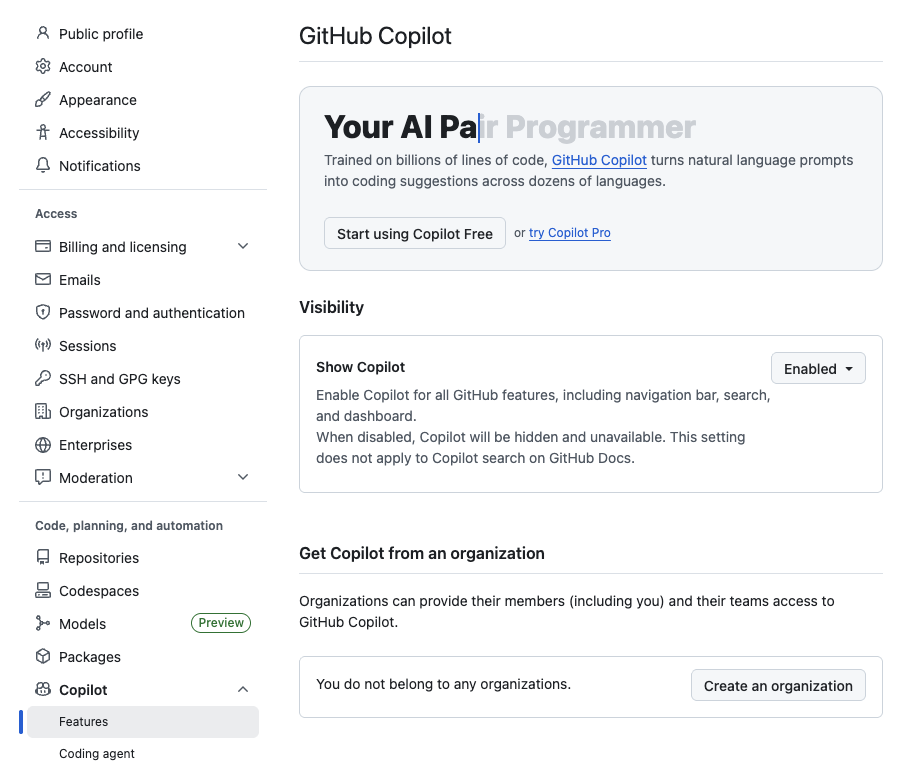
There you can activate Copilot and follow the instructions to connect it to VS Code.
Alternatively, you can install via VS Code Marketplace
- Open VS Code
- Click the Extensions icon on the left sidebar
- Search for: GitHub Copilot Chat
- Click Install
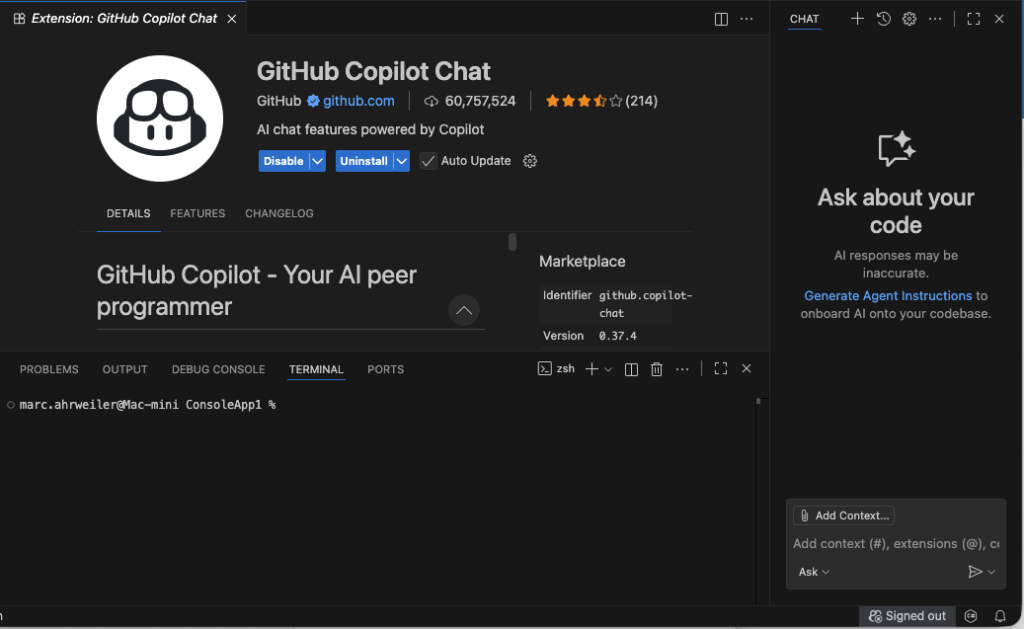
After installation VS Code will ask you to sign in with GitHub.
Confirm the login and authorize VS Code to access your GitHub account.
4. Send Your First Message in Copilot Chat
Once the extension is installed, you’ll see a new Copilot Chat icon in the sidebar.
Open the chat
- Click Copilot Chat
- A chat window appears on the right side of VS Code
Send your first prompt
Try something like:
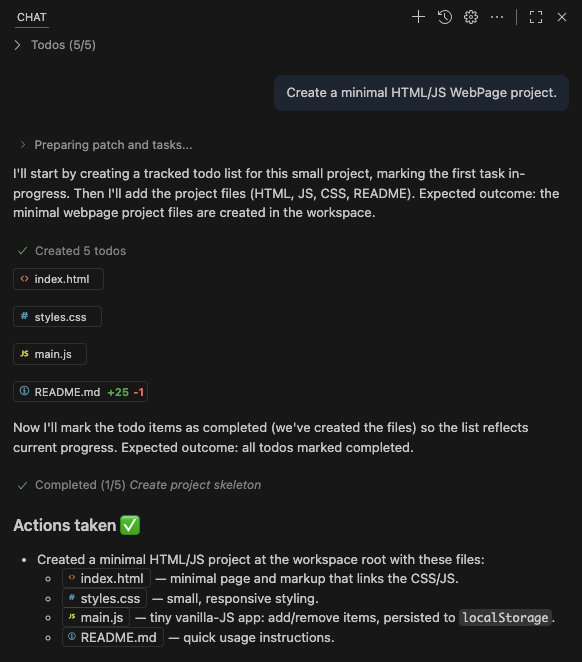
Create a minimal HTML/JS WebPage project.Copilot will generate:
- an index.html file
- a basic JavaScript file
- optional CSS
- instructions on how to run the project
You can accept or modify the suggestions and let Copilot insert the files directly into your workspace.
5. GitHub Copilot Pricing (Including Free Tier)
GitHub Copilot offers several plans depending on your needs. You can start with a free account which currently offers
- 2,000 code completions per month
- 50 Copilot Chat messages per month
- Access to GPT‑4o and Claude 3.5 Sonnet models
GitHub also provides a free Copilot plan for:
- verified students
- teachers
- maintainers of popular open‑source projects
This includes access to Copilot Chat.
Paid Plans
- Copilot Individual: Monthly subscription with full access to Copilot Chat, code completions, and inline suggestions, starting at 10$/month
- Copilot Business / Enterprise: For teams, with additional security and policy controls.
Leave a Reply